 NASJI
What is the difference between Extrude and Path Sweep?
Extrude moves a face straight along its normal; Path Sweep moves a profile along any chain of edges, including corners and curves.
NASJI CUBE / EXTRUDE & PATH SWEEP
Two tools do most of the work in architectural modeling. Extrude pulls a face into a volume; Path Sweep carries a profile along a path. Both keep the result as clean, editable faces.
Click a face and move, or type a distance. Coplanar faces merge, through-holes are cut when you push all the way through a wall, and typing a new value right after changes the last extrude.
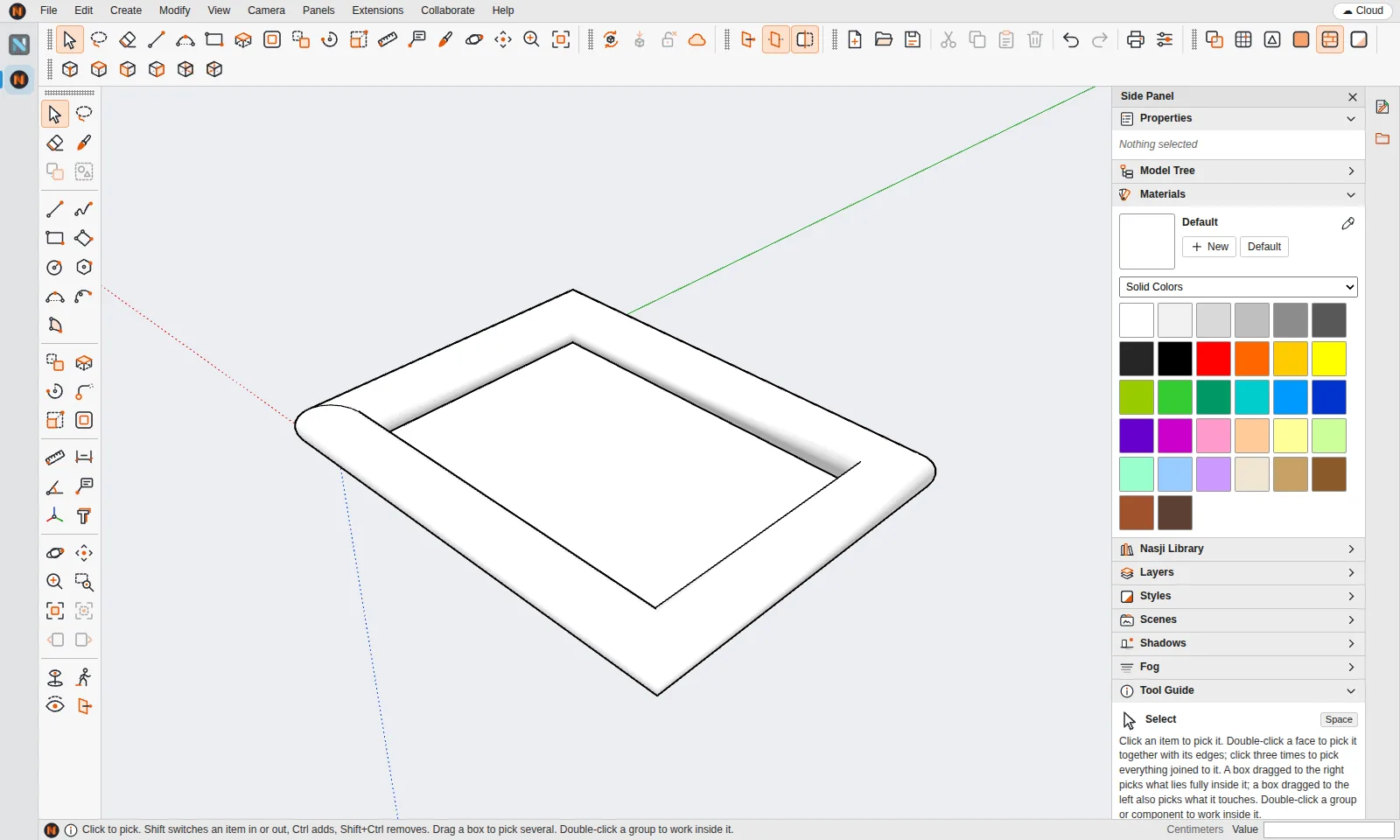
Select the edges of a path — a rectangle, a curve, the edge of a roof — then click a profile. The profile follows the path and builds a continuous solid: frames, cornices, handrails, pipes and kerbs.
Offset a face's outline in or out, flip, merge shells, and combine solids with Intersect, Union, Subtract, Trim and Split.
Draw the path, for example a 4 × 3 m rectangle on the ground.
At one end of the path draw the profile standing up, for example a circle of radius 0.25 m.
Select the path's edges with the Select tool.
Choose Path Sweep and click the profile. The profile is carried along the whole path.
Extrude moves a face straight along its normal; Path Sweep moves a profile along any chain of edges, including corners and curves.
Yes. Every operation, including a sweep, is a single undo step.
SketchUp is a registered trademark of Trimble Inc. Nasji is not affiliated with, sponsored by or endorsed by Trimble. The name is used only to describe file compatibility.